
Consent link configuration guide
JWT payload configuration guide
The JWT includes the details of the requested consent. Follow this guide to configure your link.
Consent JWT fields
Flow level fields
JSON payload example
{
  "encrypt": true,
  "iss": "tpp/{organizationId}",
  "srv": "ais/user",
  "ttl": 1800,
  "sub": "USERIDENTIFIER",
  "flow": {
    "id": "default",
    "mandatoryDataBaskets": [
      "ACCOUNTS",
      "BALANCES",
      "TRANSACTIONS"
    ],
    "accountTypes": [
      "CACC",
      "CARD",
      "LOAN",
      "SVGS",
      "SCTS"
    ],
    "mandatoryAccountTypes": [
      "CACC",
      "CARD",
      "LOAN",
      "SVGS",
      "SCTS"
    ],
    "flags": {
      "hideDataBaskets": true
    },
    "timePeriods": [
      "TWELVE_MONTHS"
    ],
    "defaultTimePeriod": "TWELVE_MONTHS",
    "userWasAuthenticated": true,
    "context": "Fusion context",
    "userIdentifier": {
      "type": "ID",
      "value": "{ID-Value}",
      "editable": false
    },
    "redirects": {
      "success": "http://localhost:8000/success",
      "failure": "http://localhost:8000/failure",
      "ttlExpired": "http://localhost:8000/ttlexpired"
    }
  }
}
Configure userIdentifier
userIdentifier- The userIdentifier object allows you to set the debtor's identification.
- Use it in cases you have the debtor's government ID or passport number (for example, after in-app/website authentication).
- Consider wether you want it editable or locked. Enable editing when you can receive consents from a different ID. Disable editing when you want a consent from a specific ID holder.
- All fields within the object are mandatory if the object is sent
- Defining userIdentifier is optional. If not sent with the JWT, the debtor will be prompted to fill out their ID (you will receive it with the webhook at the end of the process)
*passport number format:
2 character country code - hyphen "-" - Passport number (1–9 alphanumeric characters)
For example:
IL-123456
Configure corporateIdentifier
corporateIdentifier- The corporateIdentifier object allows you to set the account holder's corporate identification (in case the account holder is a corporate and you have their business number (ח.פ.)
- If you don't have it, no worries: the debtor will add it on Feezback screens.
Configure the consent data
-
The consent defines two levels of required data:
- Account types for which the consent is relevant:
CACC: Cash accounts.CARD: Card accounts.SVGS: Savings accounts.LOAN: Loan accounts.SCTS: Securities accounts.
- Data baskets required: the details that will be received for each account connected:
- ACCOUNTS
- TRANSACTIONS
- BALANCES
- Account types for which the consent is relevant:
-
If you use the VIEW service, all account types and data baskets will be required and selected by default with no editing options.
-
For the AIS service, you need to configure:
- Which account types and data baskets will be requested from the user
- What will be the default selection
- If the default is editable
Configure the consent duration
- The consent duration defines the time period the consent will be valid. After the defined time period has passed, the consent will expire and new data fetching will not be available.
- The shortest time period is one day: a consent the will expire within 24 hours.
- The maximum period is 3 years.
- After the consent period is over, the user will need to grant a new consent.
Configure flow.redirects
flow.redirects- Your urls to redirect the user to at the end of the process (optional)
- If not set, the flow will end at Feezback's Success/Rejection screen.
- URLs may not exceed 128 characters
Configure flow.targetSystem (distribution partners only)
flow.targetSystem (distribution partners only)If Feezback has set up your account as a distribution partner, every consent link you create (AIS and VIEW) includes an extra step: a target system screen, where the user chooses the system (ERP or CRM) that will receive their data and approves the target system appendix. The user is then redirected to the bank.
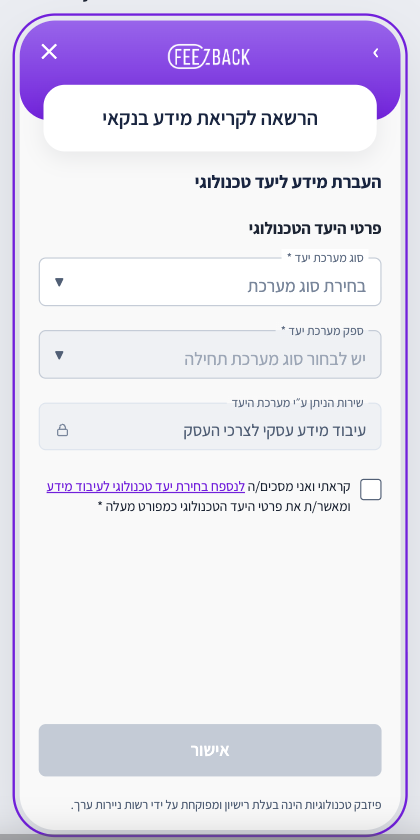
You can pre-select the target system in the JWT. Add targetSystem to your existing flow object, as shown in this fragment:
{
  "flow": {
    "targetSystem": { "type": "ERP", "id": "priority" }
  }
}- Pre-selection is a suggestion only. The user can always change it, and the appendix checkbox is never pre-checked.
- Send
typealone to pre-select only the type. - Use
GET /tpp/v1/target-systemsto get the values allowed for your account.
The link request is rejected when:
| Case | Error |
|---|---|
targetSystem is sent and your account is not a distribution partner | DISTRIBUTED_MODE_NOT_ALLOWED |
type is not ERP or CRM, or is not allowed for your account | INVALID_JWT_CLAIMS |
id is not allowed for your account or for that type | INVALID_JWT_CLAIMS |
id is sent without type | INVALID_JWT_CLAIMS |
Flags
If you use flags, place them at the top level of the JWT, outside flow.
*A common integration mistake is nesting flags inside flow.
{
  "encrypt": true,
  "sub": "user-123",
  "iss": "tpp/{TPP_ID}",
  "srv": "fast/user",
  "flags": {
    "maskAccount": true
  },
  "flow": {
    "id": "default"
  }
}| Field | Type | Description |
|---|---|---|
| displaySuccessScreen | boolean | set “false” to skip Feezback’s success screen and redirect the user directly to the pisSuccess URL |
| hideDataBaskets | boolean | set "true" to hide the data baskets selection module from the page. |
Updated 20 days ago